
How to Connect Your Printer to Wi-Fi

Complete Guide


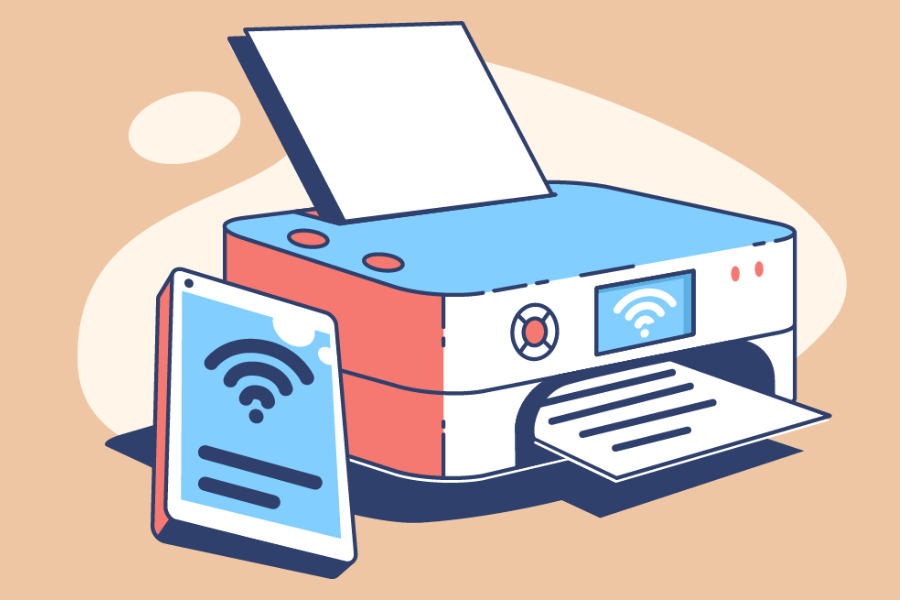
In today’s wireless world, connecting your printer to Wi-Fi makes printing faster, easier, and far more convenient. Whether you’re printing from a laptop, smartphone, or tablet, a Wi-Fi-enabled printer eliminates the need for messy cables and allows multiple users to access the same device.

This guide walks you through the different methods to connect your printer to a Wi-Fi network, along with troubleshooting tips to help you along the way.

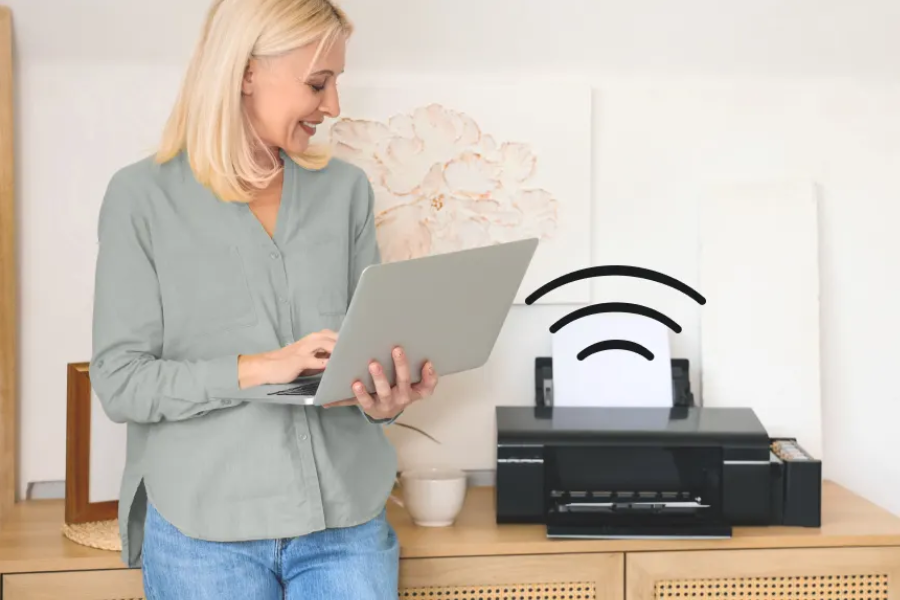
📶 Why Connect Your Printer to Wi-Fi?

Before diving into the steps, here are a few benefits of setting up a wireless printer:

🔧 What You’ll Need

Make sure you have the following ready:

🖨️ Method 1: Using the Printer’s Control Panel

Most modern printers come with a built-in display screen that allows direct setup.

Once connected, your printer should display a confirmation message.

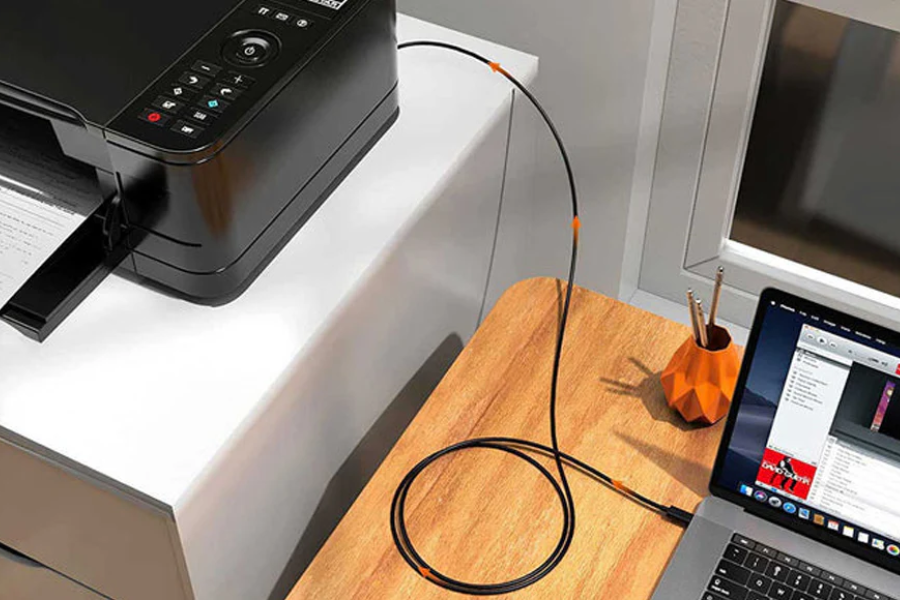
💻 Method 2: Connecting via Computer

If your printer doesn’t have a screen, you can use your computer.

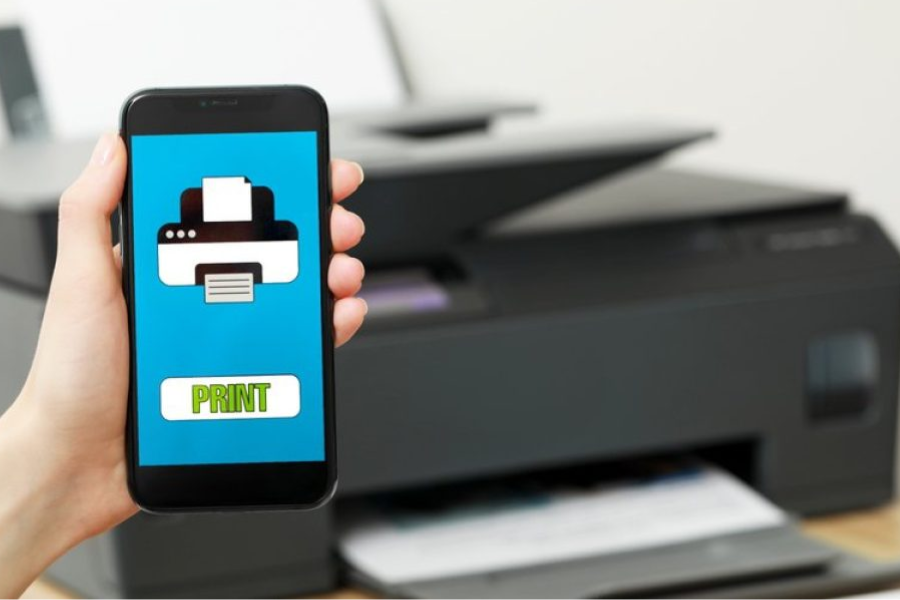
📱 Method 3: Using a Mobile App

Many printer brands offer mobile apps for easy setup.

This method is especially useful for quick setups without a computer.

🔘 Method 4: WPS (Wi-Fi Protected Setup)

If your router supports WPS, this is the fastest method.

No password is required for this method.

⚠️ Troubleshooting Tips

If you’re having trouble connecting, try these fixes:

🤝 Need Help?

If you’re still facing issues connecting your printer to Wi-Fi, we’re here to help! Our support team provides quick and reliable assistance to get your printer up and running smoothly. Feel free to contact us anytime for expert guidance.

Select the fields to be shown. Others will be hidden. Drag and drop to rearrange the order.
  • Image
  • SKU
  • Rating
  • Price
  • Stock
  • Description
  • Weight
  • Dimensions
  • Additional information
  • Add to cart
Click outside to hide the comparison bar
Compare